
Getting your Courses Ready
NEW: A vision for education and skills at Newcastle University: Education for Life 2030+
What’s New for Academic Year 2026-2027
On this page we’re going to introduce you to the new Canvas course templates for the 26/27 Academic Year.
The template design is the same as last year with a primary change relating to how assessments are set up and how assessment information is organised and presented within Canvas courses.
We will discuss the rationale behind the changes we’ve made for this new template and what these changes are.
If you wish to get started with setting your course up for the next academic year, please follow the Getting your Course Ready - 10 Step Guide to Get Your Courses Ready for 26/27 guides on this page.
Why Change?
Feedback from students has highlighted challenges in accessing assessment information within Canvas modules. Assessment information was distributed across a range of locations, including lecture slides, module handbooks, seminar materials, and other areas within Canvas modules. These inconsistencies in the presentation and location of assessment information created challenges for students in identifying and accessing relevant assessment guidance across modules.
Building on the work and feedback of the assessment briefs from the previous academic year, we have developed a standardised structure and layout for assessment information. This framework is intended to support a range of assessment types, including Canvas and Turnitin assignments, examinations, and a generic template for other forms of assessment.
Feedback From Students
Students were consulted on the proposed designs through a range of feedback forums, including the Student Insights Panel, student representative groups across the University, and pop-up consultation sessions held within the Library. These activities provided students with opportunities to contribute feedback on the proposed approaches.
Students requested that assessment information be presented consistently across modules, including being located in the same place, following a standardised format, and being communicated in a timely manner, with release taking place as early as possible within the semester.
To address this feedback, we’ve created a new structure and format for assessment information within Canvas.
Feedback From Staff
The new template and associated approach have been presented through the Director of Education Forum and Faculty Education Committees to gather feedback from colleagues on the proposed design and implementation.
In developing the new template, consideration has also been given to reducing administrative burden for staff where possible. To support this, content for the Assessment Information and Module Contact pages will be pre-populated using data extracted from the Module Outline Form system.
In addition, tailored templates have been developed for different assessment types, each accompanied by relevant submission and feedback guidance for students. This approach is intended to minimise the need for extensive editing associated with a single generic template, while also supporting greater consistency in the presentation of assessment information across modules.
It is hoped that the clearer and more consistent guidance will help reduce student queries relating to assessment submission processes and feedback, thereby supporting both students and academic schools.
What Changes Have Been Made?
To provide a centralised and consistent location for assessment information, an Assessment Information module has been created within the Modules area of each Canvas course.
This module is intended to act as the primary location for students to access assessment information, supporting improved consistency in how assessment details are presented and reducing the need for students to search across multiple areas of a course to locate relevant guidance and resources.
Assessment Information Page
At the top of this module is the “Assessment Summary” which will present an overview of all module assessments, enabling students to access key information.
This will include information such as assessment title, the relevant semester, the weighting towards the final module grade, the duration of examinations where applicable, submission or examination dates, and any additional assessment-related information.
Below is an example Summary of Module Assessments:

To facilitate consistency and reduce administrative burden, the page will be automatically populated with assessment information drawn from the Module Outline Form system. This content can then be reviewed and supplemented by module teams to include more detailed information, such as assessment dates, guidance, and expanded assessment descriptions.
Assignment Briefs
The new assignment templates have been designed to provide students with clear, consistent, and accessible assessment information across modules.
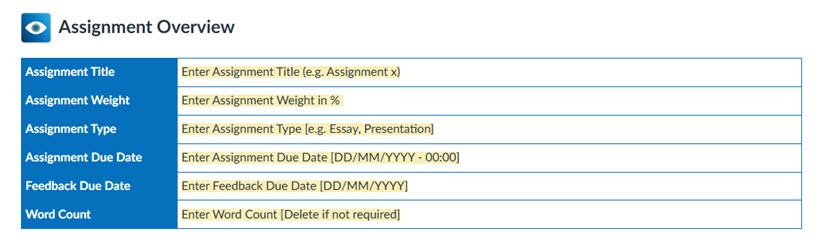
Each template begins with an overview table containing key assessment details, including the assignment title, assessment weighting, assessment type, submission deadline, feedback release date, and word count. Students have highlighted how useful they would find this, to see the key information at a glance.
Below you can see an example of an Assignment Overview:
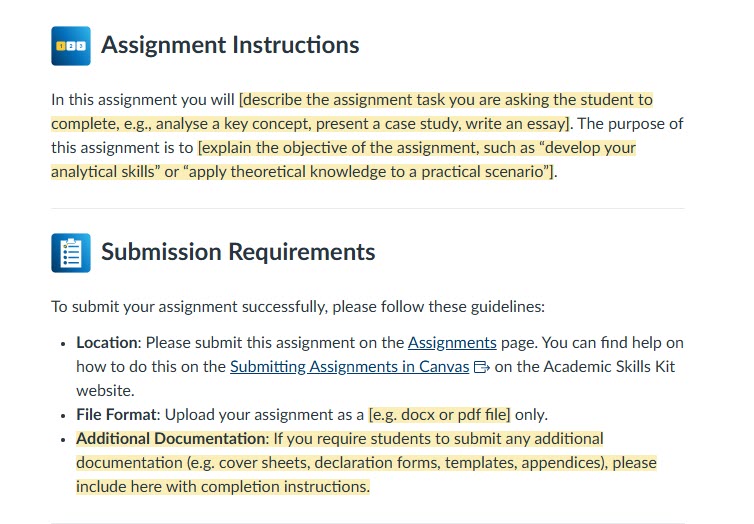
This is followed by a more detailed assessment brief comprising several core sections: an assessment overview, assignment instructions, submission requirements, guidance on the use of AI within the assessment, information on grades and feedback, alignment to module learning outcomes, and links to relevant University policies and regulations, including those relating to student progress, plagiarism, and late submission.
Here is an example of some of these core sections in the Assignment Briefs:
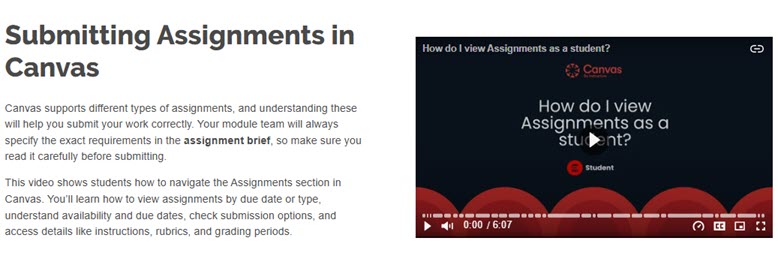
Where appropriate, the templates also include embedded guidance for students on the use of University assessment systems, including how to submit assignments and access feedback within Canvas and Turnitin. This approach is intended to improve consistency in assessment communication while supporting student understanding of submission and feedback processes.
Below in a screenshot of the Submitting Assignments in Canvas guidance from the Academic Skills Kit:
Exam Information
In addition to assignment templates, an examination brief template has also been developed to provide students with clear and consistent information relating to examinations. Each examination brief begins with an overview section containing key details such as the examination date, assessment weighting, examination format, duration, and permitted resources.
The overview is followed by a detailed examination brief that includes information on the examination itself, alignment to module learning outcomes, examination guidance and regulations, revision and preparation advice, information relating to grades and feedback, and links to relevant institutional policies and procedures.
This approach is intended to support students in preparing effectively for examinations while ensuring greater consistency in the communication and presentation of examination related information across modules and programmes.
Getting your Course Ready - 10 Step Guide to Get Your Courses Ready for 26/27
As we transition to a new course template for the upcoming academic year, we understand that preparing your course materials can feel like a big task. To make this process as smooth and straightforward as possible, we've developed a comprehensive 10-step guide designed to walk you through everything you need to get your course ready for September.
Each step includes clear, practical instructions and short video tutorials to guide you through the process at your own pace. Whether you're updating existing content or building your course from scratch, this guide will help you get your course ready.
IMPORT WARNING - Maintain Template Functionality
Manually Edit These Pages
To preserve the functionality of the template, it is recommended that you manually edit the following pages in your course template rather than import them from a previous year/course:
- Course Homepage - Step 1 and Step 2
- Module Information - Step 3
- Module Contacts - Step 4
- Assessment Information - Step 5
Additionally there is a new Assessment template in your course for Academic Year 25/26. Please use this template rather than import your assignments from the previous year
Failure to follow this guidance may result in broken links or other issues within your course.
If you have done this and need the template no longer works, please follow the Troubleshooting guides on this page
Step 1 - Update Module Code and Name
Update the module code and name in your course banner to improve navigation and help students easily identify which course they are currently viewing
You can add your module name and code to the homepage banner using the Canvas Rich Content Editor.
Step 2 - Update Homepage Introduction
The course homepage should be customised to include an introduction to the course including any links to key aspects of the
course.
The course homepage is designed to welcome and direct learners to key areas of your course, promoting efficient navigation and reducing time spent searching for materials. It also allows instructors to personalise the content, which enhances the relevance and engagement of the course materials.
Step 3 - Update Module Information
Check Syllabus Information
Module information is automatically displayed on the Syllabus page in Canvas, which is populated using data from the Module Outline Form (MOF) system. On the Module Information page, we’ve included a direct link to this Syllabus for easy access.
This page will need to be checked to ensure information is correct. If there is any incorrect information on this page, it will need to be updated in the Module Outline Form system and not on Canvas as this will be overwritten each morning.
Please note for Parent Child Modules, the Canvas Syllabus page will no longer be populated from the MOF database so this would have to be created manually to include this information.
Removing Sections from Module Information Page
If you don’t have any additional information or a module handbook to include, you can edit this page to remove those sections—ensuring students only see the information that’s relevant to them.
This short video will demonstrate how you can remove these sections:
Adding a Module Handbook
If you have a Module Handbook, you can add this to the Module Handbook section of this page.
In this short video, you will see how to do this:
Adding Additional Resources
If you have any additional resources that may benefit your students, you can include them here. These might include external websites, documents, or other useful materials—simply add direct links using the Canvas Rich Content Editor to make them easily accessible.
Step 4 - Update Module Contacts
Key module contact information should be easy to find within the Canvas course. This should include, where applicable, contact information for teaching staff on the module.
Students can easily contact to instructors whenever they have questions, concerns, or require additional support, which promotes a collaborative and interactive learning environment.
Step 5 - Update Assessment Summary and Assignment Briefs
Assessment Summary
Assessment information should always be clear and easy for students to access. It should include essential details such as assessment instructions, deadlines, weightings, marking schemes or rubrics, and information about when and how feedback will be provided. The Assessment Summary page within your course is designed to help you present all of this in one convenient location.
The Assessment Summary page is populated from the Module Outline Form (MOF) system. It is important that you include the due dates of your assessments in the table provide.
You can use the Canvas Rich Content Editor to make these amendments. If you need help using the editor, additional guidance is available on the Canvas Rich Content Editor section of the Learning and Teaching website.
Assignment Briefs
Assignment Briefs are designed to provide students with all the information they need for a specific assignment. These details are no longer included within the assignment submission point. This ensures that the information about the assignment is available to all students from the start of the course. Please see guidance on how to update the assignment briefs
Step 6 - Update ReCap Information
A new ReCap section has been added to the homepage for the 2025–2026 academic year. This section is designed to inform students about how ReCap will be utilised within your module. It also helps to establish clear expectations regarding the availability of recordings.
If ReCap is not being used, you should instead outline the alternative forms of support that will be provided.
Please find the template text below. You should edit this as needed, adding or removing sections to suit your module:
Option 1 – ReCap is being used:
ReCap will be used to record all lectures or lectures and seminars [delete/amend to indicate what will be recorded] for this module. ReCap is not intended to replace attendance at live lectures and should be used for review, revision and to support your learning. ReCap recordings will be available to you immediately following the teaching session (subject to processing time which can be up to 24 hours) or within X number of working days. [delete/amend as appropriate to give details of when students can expect access to recordings, this should be within 3 working days of the recordings taking place].
Option 2 – ReCap is not being used:
ReCap will not be used to record all/any lectures for this module [delete as appropriate] and instead you will be provided with alternative support in the form of [provide details of alternative form(s) of support, for example, detailed lecture notes, enhanced notes supporting slides; a podcast that provides a commentary on the lecture slides; or a video explaining the session.]
For more information how to use ReCap please visit the Recap Guidance pages on the Learning and Teaching Website.
Step 7 - Import Content from Previous Courses
Importing content from a previous Canvas course can save you time. Whether you're reusing materials such as pages, or entire modules, Canvas allows you a way to bring content into your new course.
It is advised that you manually edit the following pages rather than import them, to maintain the templates functionality:
- Module Information
- Module Contacts
- Assessment Information
This guide walks you through the process step by step, ensuring that you import only the materials you need while preserving the current course template.
Step 8 - Add/Remove Canvas Navigation Items
The course navigation menu in Canvas is located on the left-hand side of the screen and provides students with quick access to essential course resources such as module materials and assignment information. To ensure clarity and consistency across courses, it is considered best practice to customise this menu by hiding any unnecessary items and maintaining a consistent order of links. This guide will walk you through the process of editing the course navigation menu, including how to change the visibility and order of navigation items, and how to preview the menu from a student’s perspective.
To edit your course navigation, please follow this guide.
Step 9 - Prepare your Reading List
By providing a Course Reading List on Canvas, instructors enable students to access and engage with the necessary readings conveniently via a direct link. The Reading List feature has been enabled on all Canvas courses.
If a reading list is applicable to your course, follow the guidance on the Library Reading List webpage.
Copyright Licensing Agency (CLA)
The Library offers a digitisation service for academic staff, under the terms of the Copyright Licensing Agency (CLA) Higher Education Licence.
This makes articles or book chapters owned by the University available online to students through via Canvas.
So within your teaching if you want to add an extract or quote to a PowerPoint Presentation then that would be fine. If you want your students to read a longer extract then you need to use your online reading list to provide a link, so students can access it themselves.
Uploading the entire text or PDF to Canvas is not permitted.
For more information please visit Scanning and CLA requests.
Previewing the Reading List in Student View
As an academic, when viewing a Library Reading List in Canvas in 'Student View' you may be shown an error message for an unknown user.
Please be assured this is normal and the student will be able to see the Library Reading List.
It is due to the way the system looks to authenticate access to the list and the 'Student View' is anonymous which throws up this Unknown user id error.
For more information about this, please visit Why does Student View in Canvas show an error when viewing a Library Reading List?
Step 10 - Publish Content and Course
When all the checklist items are complete, you will need to publish your course for this to be viewed by students. Please follow the Canvas guide on how to publish your course.
You will also need to ensure the modules and module items are published in order for students to see these. You can follow the How do I publish or unpublish a module as an instructor guide for information on how to do this.
For students to view courses they will need to be published and enrolled onto the course via SAP. Students will be enrolled onto courses from September 2025 following registration.
Publishing Pages to Assist with Homepage Navigation
Make sure the following content is published in order for the homepage links to work:
- About This Module (Module Published)
- Module Information (Page Published)
- Module Contacts (Page Published)
- Assessment Information (Module Published)
- Assessment Summary (Page Published)
Using ReCap Recordings from Previous Years
ReCap content is not included in the import process. Please note, if you have ReCap recordings added as a module item or embedded in a page, these will be linked to the previous years’ content that this year's students will not be able to access.
To reuse ReCap recordings from previous years you should create a copy of the existing recording(s), move the copies to the folder for 2026/26 and recreate the links within modules.
- To make copies of recordings follow this guide.
- To add a link as a module item or embed in a page follow this guide.
Please note, to do this you must be the creator of the original recording (or have permission from them) and be a teacher on both courses.
Tip 1 - Check Content in Student View
The "View as a Student" function in Canvas allows instructors to experience their course exactly as a student would. This feature is particularly useful for checking how content is presented and ensuring that everything is accessible and functioning as intended.
When you activate this mode, you are logged in as a Test Student. This means you can navigate through the course, view materials, and interact with features just like a real student. It’s an excellent way to confirm that modules, files, announcements, and other resources are visible and displaying as intended.
You can also use this mode to submit assignments, take quizzes, and participate in discussions. This helps you test whether these elements are working correctly and gives you a clear idea of what students will experience when they engage with your course.
For more information and instructions on how to use this tool please visit the How do I view a course as a test student using Student View guide.
Troubleshooting
Most updates to your Canvas course will be straightforward, but occasionally you may need to correct something that has changed unintentionally or restore parts of the template after importing content. The following short videos walk you through some of the most common troubleshooting tasks, helping you quickly get your course back on track without having to rebuild content from scratch.
These guides cover:
- Page History – Restore an earlier version of a page if changes have been made in error.
- Reinstating the Template Homepage – Restore the original template homepage after importing content from a previous year's course.
Use the videos below whenever you need to make adjustments or recover elements of the course template.