
Canvas Submissions
A Canvas assignment submission
This page features guidance and troubleshooting support for Canvas assignment submissions. At Newcastle University we have different types of assignments, so if the information below doesn't support your assignment type, please refer back to the Academic Skills Kit (ASK) website
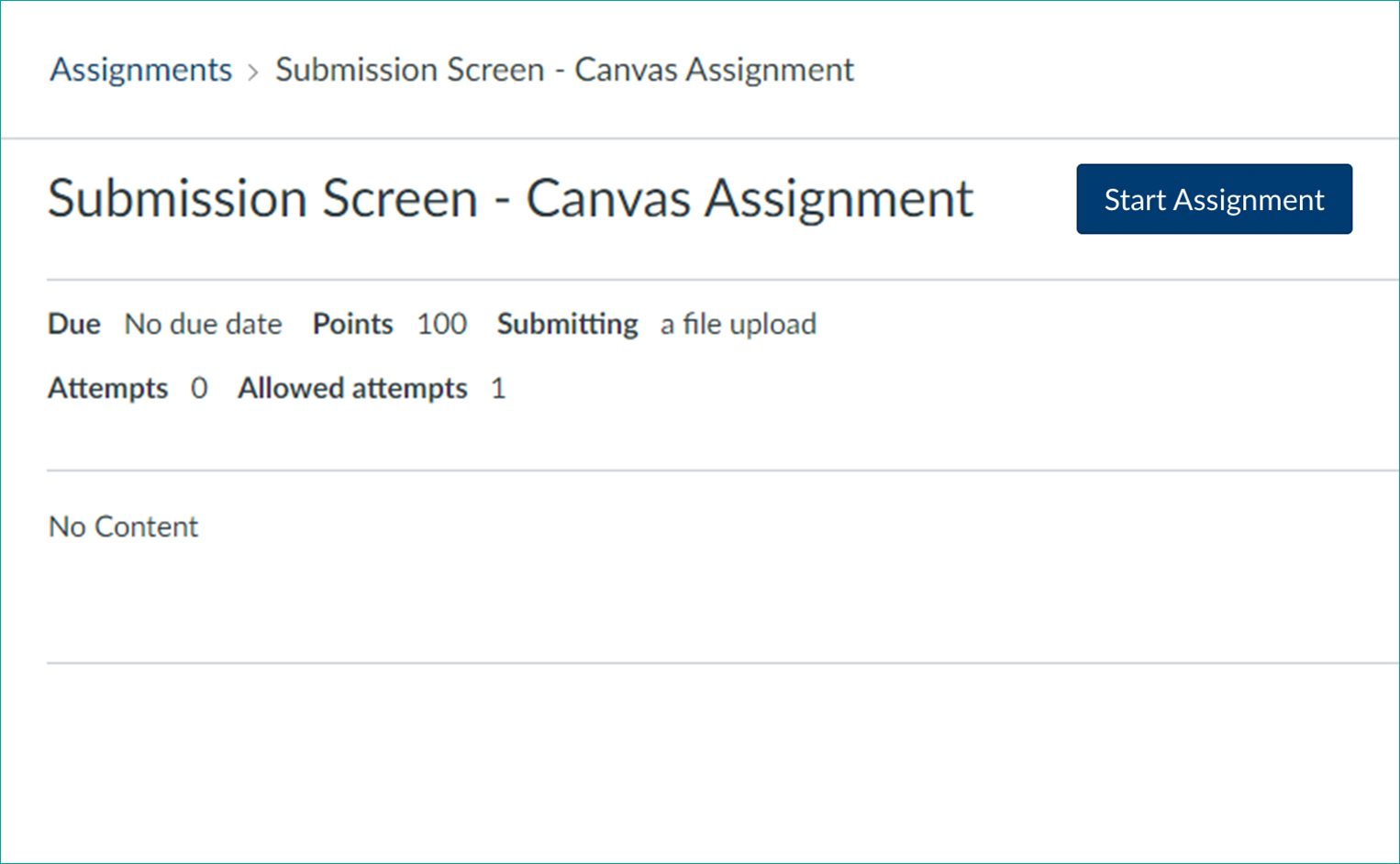
A Canvas Assignment is shown below:
Canvas Assignment Submission Guidance
Steps to Submit your Assignment
It is recommended to use Chrome or Edge web browsers on a Laptop or PC, where possible, when submitting your assignment. Details of your Assignment Brief can be found on your Canvas course via the Assessment Information button on the course home page, or from the link in your Assignment Submission point.
To submit your assignment:
- In your Canvas course, click on the Assignment menu option
- Click on the Assignment title you wish to submit to. Always double check that you have selected the right assignment point before submitting.
- Click on the button that says 'Start Assignment'
- A new page will load
- For the majority of assignments you will be expected to attach a file, this is done by either dragging the file from its saved location into the box with the image of a rocket or by clicking Choose a file to upload, and searching for the document.
- It is strongly recommended that you do not use the Office 365 menu option to upload your file, as occasionally it has prevented academics from being able to view submissions, due to the file permissions.
- Once you have chosen a file, it will appear in the submission box. If required you can attach further files at this point by clicking +Add another file.
- If the assignment includes a Turnitin Similarity report, you will need to read and agree to the Turnitin End-User Licence Agreement
- Once you are happy that you have attached all the correct documents, click the Submit assignment button
- The page will refresh and you be able to see confirmation you have submitted
For further details on how to submit a Canvas assignment, guidance is available on submitting a Canvas Assignment.
There is also a Canvas Assignment submission troubleshooting guide that includes guidance on how to identify;
- The number of attempts allowed – once the permitted number of submissions is reached no further submissions can be made.
- Permitted file types – are only certain files being accepted e.g. word documents.
- Availability dates of the assignment – submissions cannot be made once the assignment is no longer available.
- Browsers compatible with Canvas – check that the browser being used is up compatible and up to date.
- How to clear cache and cookies – Canvas suggest this may resolve submission issues.
If you have a different query regarding Canvas Assignments, all Canvas guidance relating to assignments is available on the Student Canvas guidance webpages.
If you experience issues when trying to submit your assignment, please email your school office in the first instance.
Submitting Assignments in Canvas
Canvas supports different types of assignments, and understanding these will help you submit your work correctly. Your module team will always specify the exact requirements in the assignment brief, so make sure you read it carefully before submitting.
This video shows students how to navigate the Assignments section in Canvas. You’ll learn how to view assignments by due date or type, understand availability and due dates, check submission options, and access details like instructions, rubrics, and grading periods.
Online Canvas Submissions
These are individual assignments where you upload your work directly to Canvas. Submission options may include file uploads, text entry, media recordings, or links. While Canvas provides the tools for submission, the assignment brief will confirm the required format, file type, and any additional instructions.
How to Make a Online Canvas Submission
Online assignments in Canvas allow you to upload your work directly through the platform. Depending on the settings chosen by your instructor, you may submit files, enter text, provide a URL, or upload media. This guide walks you through the process of submitting an online assignment step by step, so you can be confident your work is uploaded correctly.
Always check your Assignment Brief for specific requirements such as file type, naming conventions, and deadlines before submitting.
How do I submit an online assignment?
This video walks you through submitting an online assignment in Canvas. You’ll learn how to start an assignment, choose the correct submission type—such as file upload, text entry, URL, media, or annotation—and manage multiple attempts if allowed. The guide also covers viewing submission details, resubmitting work, and checking grades and feedback after your instructor reviews your submission.
You can view full guidance on how to submit your assignment on Canvas using the How do I submit an online assignment guide.
How do I know when my assignment has been submitted?
After submitting your assignment in Canvas, it’s important to check that it was submitted correctly and appears as intended. This video will show you how to review your submission.
Click on the submission to ensure this can be viewed or downloaded (if applicable) to ensure this is displaying as intended.
Canvas Guides
Canvas Group Submissions
How to Make a Canvas Group Submission
Only one member of the group will make the submission on behalf of the entire group. Follow the guidance in the video below for details on how to submit to a group assignment.
How do I submit a group assignment?
This video explains how to submit an assignment on behalf of your group in Canvas. You’ll learn how to upload files, add comments for your instructor or group members. The guide also covers resubmitting work if allowed, viewing submission details, and checking grades and feedback once your instructor has reviewed the group assignment.
How do I know when my assignment has been submitted?
After submitting your assignment in Canvas, it’s important to check that it was submitted correctly and appears as intended. This video will show you how to review your submission.
Canvas Guides
Canvas Peer Review Submissions
How to Make a Canvas Peer Review Submission
How do I submit a peer review to an assignment?
This video shows you how to complete a peer review in Canvas. You’ll learn where to find your assigned reviews, how to provide feedback using rubrics or comments, and the steps to submit your review successfully. The guide also covers adding text, media, or file comments when a rubric isn’t provided.
How do I know when my assignment has been submitted?
After submitting your assignment in Canvas, it’s important to check that it was submitted correctly and appears as intended. This video will show you how to review your submission.
Canvas Guides
Accessing Grades and Feedback After Submissions
Specific details for your assignments grading and feedback process can be found in the Assignment Brief on Canvas.
For information on how to access your grades and feedback including:
- Different types of feedback available in Canvas.
- How to access your feedback for assignments in Canvas.
- How to set up notifications so you know when new feedback is available.
Please visit the Canvas Feedback pages on the Academic Skills Kit website.
To learn how to process your feedback and know how it can help you with future assessments, visit the Understanding and Interpreting your Feedback webpage.