
Creating Questions in Inspera
NEW: A vision for education and skills at Newcastle University: Education for Life 2030+
Creating Questions and Question Sets
Questions are created in the 'Author' module of Inspera. They can be created independently or as part of a question set.
A question set is a group of questions that are used to form a test and is used to present questions to students. Any question created directly in a question set can also be found under questions and can be reused in other question sets. The Digital Exams Team recommend that Question Sets are appropriately named, e.g. 'MOD1234 Semester 1 Exam 2025-26' or 'MOD1234 Practice Exam 2025-26'. There is an Inspera guidance video that demonstrates creating questions in a question set.
It is standard practice that the academic colleagues within the module team create their question sets in Inspera. This allows academic colleagues to familiarise themselves with the Inspera system and all the features and functionality available to develop question sets.
It is recommended to get into the habit of labelling questions. This will enable you to easily reuse and report on your questions as they are used in tests.
The Digital Exams Team have created a set of videos to help guide users on creating questions in Inspera, and there are also Frequently Asked Questions (FAQs) available on this page to support colleagues when creating question sets.
NEW AUTHOR INTERFACE
New Author Interface for 2026-26 Academic Year
As of September 2026, Newcastle have adopted the New Author interface of Inspera for the authoring of questions and question sets. The updates to the authoring area are mainly in terms of an improved user interface with some improved functionality as well.
What are the improvements with New Author?
- General improvements to the visible interface – e.g. the list of available questions, adding sections/stimulus.
- Ability to bulk add multiple questions of the same question type.
- Greater flexibility around moving between questions and making edits in your question set.
- Easier to ‘drag and drop’ your questions to move them around your question set.
- Increased ‘preview’ options.
- Improved grouping of settings within the ‘design’ area.
- Requirement to name question set when creating.
What about Legacy Author?
For the 2026-27 academic year, Legacy Author is still available to use however users are encouraged to transition to New Author from September 2026 as the Legacy Author will not be available from September 2027 onwards.
If you require support with Legacy Author, please contact Digital.Exams@newcastle.ac.uk.
Frequently Asked Questions
Check out our frequently asked questions to find out more about creating question sets in Inspera. You can also get in touch with the Digital Exams Team via Digital.Exams@newcastle.ac.uk. Questions are grouped into 'Creating questions and question sets', 'Functionality in question sets: Sharing, previewing and printing', 'Reusing questions and question sets' and 'Assigning marks to questions'.
Creating questions and question sets
What question types are available for an Inspera exam?
As well as guidance on how to create a questions, there are detailed Inspera guides for creating each question type, grouped into automatically marked and manually marked question types. There is guidance on the general options for all questions available.
Some of the most commonly used are:
- Multiple Choice Question
- Multiple Response - allows more than one correct answer.
- Text entry - used for single or multiple fill in the blank responses.
- Essay - used for short or long written responses. Word limits can be set and configurable essay toolbars can be used. Turnitin originality reports can be generated.
- Numeric entry - students are required to enter a number or number value.
- Hotspot - students click on an area of an image to select their response. Multiple hotspots can be used on one image.
Multiple question types can be also combined using the Composite question type. For more information on the composite question type, please see the Inspera Content Creation Features webpage.
Can I import questions into Inspera?
Questions or question sets can be imported into Inspera using QTI. Inspera have provided a guide.
However, the Digital Exams Team strongly recommend that questions are created using Inspera Author, to gain access to the full range of question creation features. Further information about question features can be seen on our Content Creation Features webpage. Due to workload capacities, the Digital Exam Team cannot support the importing of QTI files into Inspera.
Please note: it is not possible to update existing question sets by import. If you have an existing question set you wish to edit, you can do this on Inspera. The Digital Exams Team recommend duplicating your original question set first and creating a new copy. Please see FAQ 'Can I re-use my question set for an upcoming Inspera exam?' for information on how to do this.
Can I write my questions outside of Inspera then copy and paste them in?
Yes, you can write your questions offline and then copy and paste your questions into Inspera. Please be aware that some applications such as OneNote, Teams or other rich-text editors may include hidden formatting, unsupported styling, embedded metadata, or special HTML structures when content is copied directly. This means that whilst you can copy over the content, it may then be stripped out when attempting to save.
If you are writing your exam questions offline, we'd recommend ensuring that you ensure the content is in a plain-text or formatting-neutral editor (such as Word or Notepad) before copying over to Inspera.
How do I use the 'Design' area of my question set?
The design area of your question set also enables you to view a preview of your question set and enable a series of settings which are grouped into Layout, Navigation and Features.
Layout
You can choose the Question Numbering Style – Test sequential is the recommended option.
You can then also choose to enable a series of options. The Digital Exams Team recommend the following, and for summative Inspera exams, will select these for you unless told otherwise:
- Enable navigation bar ✅
- Table of content ❌ - unless you are using Candidate Selected Questions
- Hide question title ✅
- Question maximum marks ✅
- Show progress bar ❌
- Show help for keyboard-based drag interactions ✅
Navigation
We do not use one way navigation on exams at Newcastle so we ask that you do not select this option:
- One way navigation ❌
- Show warning when navigating away from pages with incomplete responses ❌
- Highlight next button when the responses are completed ❌
Features
Flagging - ENABLE
Allow candidates to flag questions to review later. These flags will also be visible to them in the navigation bar.
Notes - ENABLE
Allow candidates to highlight text and add annotations during a test. These notes will not be included as part of the submission.
Can my answer alternatives be shown to students in a randomised order?
Yes, as a default Inspera is set so that any auto-marked questions with a list of possible options will show these answer options to students in a random order.
How to turn on/off randomisation of answer alternatives
If you’d like to view this (or turn it off), please follow the following steps:
- Access Inspera
- Navigate to the Author area
- In the search bar, type the question set name or the module code to find a list of available question sets for your module
- Find the question set you wish to print and click on the name to open this
- Locate the question(s) that you wish to edit and select this so that the question is visible on screen
- Click into the box where the different answer alternatives are showing on screen to load the answer alternatives menu on the right-hand side
- Scroll down to options and open the drop-down
- ‘Random order of alternatives’ can be checked or unticked at the bottom of this ‘options’ area.
How do I ensure I am creating accessible questions and question sets?
Accessibility is something that should be reviewed when authoring questions and question sets. Question authors are advised to consider accessibility of their students.
Some examples of best practice include:
- Ensure images used in questions included appropriate labels
- Use high quality images
- Ensure colour contrast is possible for all content
More information can be viewed via the authoring accessible questions webpage on the Inspera Help Center.
You should ensure that any images used in questions are in the JPEG format rather than PNG. It is good practice to then test the question image is visible in the contrast options setting. See the FAQ 'How do I complete an inversion check on my question set?' for more information on how to do this.
How do I rename my question set and questions?
It is possible to rename your question set and questions after you have created them.
How do I rename my question set?
- Access Inspera
- Navigate to the Author area
- In the search bar, type the question set name or the module code to find a list of available question sets for your module
- Find the question set you wish to rename and click on the name to open it
- Select the three horizontal dots in the top right corner of the screen
- Then select the ‘Rename Question Set' option
- Change the name of the question set accordingly
- Once you have located the name of the colleague, click 'Confirm'.
How do I rename individual questions?
- Access Inspera
- Navigate to the Author area
- In the search bar, type the question set name or the module code to find a list of available question sets for your module
- Find the question set you wish to rename and click on the name to open it
- Locate the question that you would like to change the name of
- Select the three vertical dots located on the right hand side of the existing question name
- Then select the ‘Open in Question View' option
- The individual question will load in a new tab
- Select the three horizontal dots in the top right corner of the screen
- Then select the ‘Rename Question' option
- Change the name of the question set accordingly
- Once you have located the name of the colleague, click 'Confirm'
- Go back to the tab with your question set in and click 'refresh' if prompted.
How can I share my question set with other colleagues or external examiners?
It is possible to share questions with colleagues, however Inspera does not offer real time collaboration on questions and question sets, which means that only one author can work on a question set at any given time. The question set has to be closed by the author before anyone else can modify it. You may want to consider saving a 'master copy' of a question before sharing it for editing.
You will need to add your colleagues as a 'contributor' to your question set in Inspera. This will allow them to view questions and preview them in Inspera. This is also useful if you are creating the content together with another colleague.
How to add contributors to your question set:
- Access Inspera
- Navigate to the Author area
- In the search bar, type the question set name or the module code to find a list of available question sets for your module
- Find the question set you wish to print and click on the name to open this
- Select the three horizontal dots in the top right corner of the screen
- Then select the ‘Share with users’ option
- On the Share with users page, you will see the list of colleagues who the question set is currently shared with. You can use the search field to search for the name of the colleague you are wishing to add to the question set.
- Once you have located the name of the colleague, you can click share to grant them access. You can choose to unselect the ‘notify via e-mail' option if you do not wish an email to be sent.
Please note that if you cannot find a user when searching for their name, it is likely that they have not accessed Inspera via Canvas yet, and therefore do not have an Inspera account. They would need to access Inspera via Canvas to activate this, and for their name to show in the list. There are instructions on how to access Inspera via Canvas to activate their account on the Getting Started with Inspera webpage.
Alternatively, you may wish to consider the option of downloading a PDF copy of the question set content from Inspera to share the question set content with them. See the FAQ 'Can I print my question set?' to find out how to download a PDF copy.
How can I share my question set content with our external examiner(s)?
For full information on sharing your question set with external examiners, head on over to the External Examiners and Inspera webpage.
Can I preview how the questions will look to students?
Yes, and it is recommended that you preview your question set to see how questions will appear to your students. This is also an opportunity for you to check that the number of marks assigned to each question are correct. For multiple choice or multiple response questions, you can ensure that any unused or additional answer alternative options still showing are then deleted.
How to preview your Question Set
- Access Inspera
- Navigate to the Author area
- In the search bar, type the question set name or the module code to find a list of available question sets for your module
- Find the question set you wish to print and click on the name to open this
- Select the eye icon which shows down the left-hand side of the screen and select this
- From here, you have three views that you can use which include: As Author, As Candidate and Correct Answers.
View as author
You can navigate through the individual questions and view how the question generally looks. This will not necessarily match the student view but is more about letting you see a question in practice.
View as candidate
You can navigate through the individual questions and view how they will appear to your students in the exam.
View correct answers
This is a great way to check the number of marks assigned to each question and allow you to review that these are correct.
How do I complete an inversion check on my question set?
If you are using images, graphs or tables, you should complete an ‘inversion check’ to ensure that graphics are still visible to students utilising the screen inversion feature within Inspera. You can do this whilst previewing your question set.
How to preview your Question Set and complete an inversion check
- Open Inspera (this can be done by clicking on your previous exam within Canvas assignment area)
- Click on the Author tab
- In the search bar type the question set name/module name
- Find the question set you wish to print and click on the name to open this
- Select the eye icon in the top right corner (if you hover over this it will say 'preview')
- In the top right corner of the screen, select the three horizonal lines (sometimes referred to as the 'hamburger menu')
- Then select 'Contrast' followed by 'Inverted'
- You can then close the menu and review the questions in your question set
You should ensure that all images can be viewed when the inversion is enabled. If any images cannot be viewed fully, you should update the image in your question set. The recommended image type to use is 'jpeg' as this ensures images are still able to be viewed when inverted.
Can I print my question set (e.g. to create a paper copy)?
Yes, a Question Set once created can be printed as a PDF. You could use this PDF to produce a paper copy of the exam questions if required.
How to print your Question Set
- Access Inspera
- Navigate to the Author area
- In the search bar, type the question set name or the module code to find a list of available question sets for your module
- Find the question set you wish to print and click on the name to open this
- Select the three horizontal dots in the top right corner of the screen
- Then select the ‘Print Manager’ option
- This takes you to the Download and Print page. You can then choose which options you wish to enable (more information below).
a. Select the ‘download question set option’. The download may take a minute or two to prepare, but once ready you will be presented with the ‘Download now’ option for you to click - The download will be in your downloads folder
- You could also use the Print option in the top right corner of the screen and use the ‘save to PDF’ option available.
If you would like to change what is available on your PDF, you can edit the Settings area. Select the settings area to access the dropdown menu of options.
Settings allow you to:
- remove maximum marks
- remove ‘documents’ or instruction pages
- remove certain questions from the PDF (i.e. hide auto marked questions)
Can I re-use my question set for an upcoming Inspera exam?
Yes, a Question Set once created can be re-used. The Digital Exams team recommend duplicating your Question Set and then editing, this means there's a clear audit trail of the Question Set used in prior years.
Module Teams can choose to use same Question Sets for multiple exams.
How to duplicate your Question Set
- Open Inspera (this can be done by clicking on your previous exam within Canvas assignment area)
- Click on the Author tab
- In the search bar, type the Question Set name/module name
- Find the question set you wish to duplicate and click into the tick box (on the left hand side)
- An options bar appears along the bottom, click 'duplicate'
- A message will appear about the duplication, click 'continue'
- Click into this new ‘copy of’ question set
- You can rename the question set by clicking the three dots in the top right corner.
You can make any changes to the Question set for your upcoming exam.
Can I label individual questions in Inspera to help me find them in future?
Yes, users can add labels to individual questions to help with general organising and for locating questions with specific content.
Inspera have created the option to filter on labels that have been added to questions. It is now possible to be able to filter on more than one label simultaneously.
Using labels in practice
You can add labels to questions in your question set. For example, you may wish to label your questions with the topic (e.g. Topic X, Y OR Z) but you may also want to add another filter, such as the year the question is from. When searching the question bank of all your questions in Inspera, it is now possible to filter so that you can find questions that are, for example, from ‘2025/26’ and from ‘topic X’, rather than all questions coming up with either of those filters. You can find step-by-step instructions below.
How to create a label
- Within the Author module, access your question set, then locate a question that you wish to label.
- Locate the general options panel on the right hand side and open the Labels
- Here you can type in your label name and click + add, or enter. It is possible to add several labels to one question.
- In the top-right corner of your question, remember to click Save.
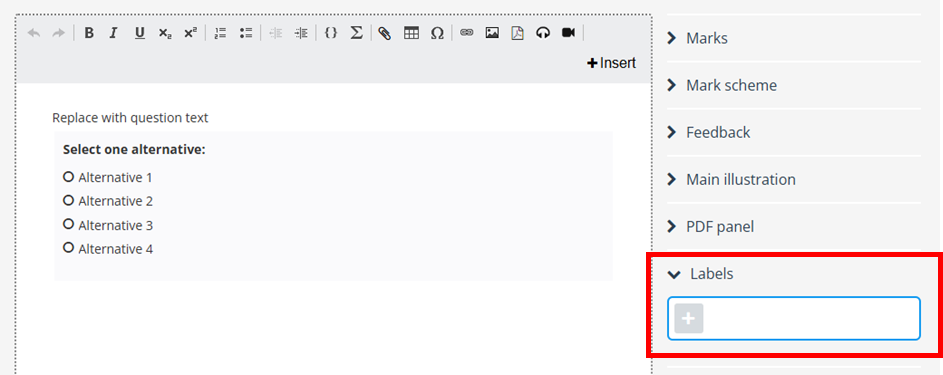
Note: Labels can be added at any time, not just when you create the question.
How to filter questions using labels
It is possible to locate questions based on their label using the filtering function.
- Go to the Questions area of the Author module.
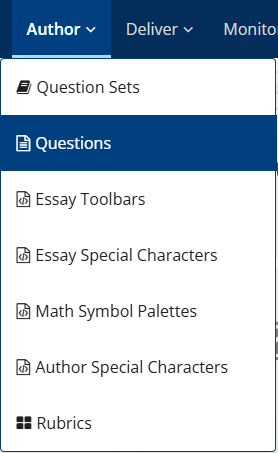
- In the top-right corner, select Filters.
- Select the Labels dropdown and start to type the label name (note: a minimum of 3 characters are required).
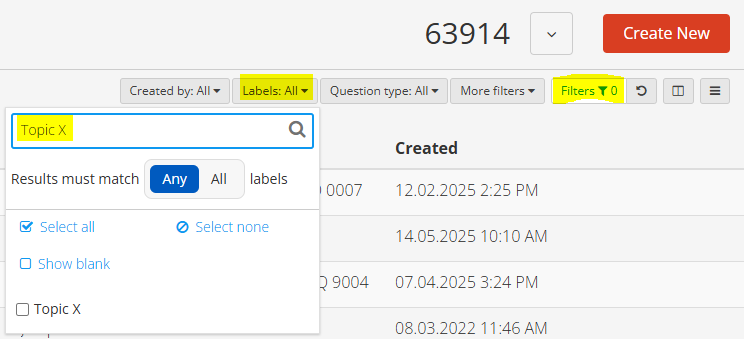
- Select the filter option. This will then show you a list of all questions with that label.
- You can make a note of the question names and then search for your question names from the question bank area within a question set.
Note: You can use the ‘any’ button if you would like to find any questions using any of the label(s) selected, or use the ‘all’ button if you wish to find questions that have all of the labels you have selected. This will exclude questions that only have one of the selected filters.
How do I add questions to my question set from the question bank?
You are also able to add a question from the Question Bank, meaning you can re use questions previously created. From the 'Create New' question area, you can choose to select 'Add from Question Bank'.
You can then search from questions you've created and those which have been shared with you. To include a question from the Question Bank, select the question and then press the 'Add' button. To easily search for questions, you can filter on labels.
Can I add a rubric to my manually marked questions?
It is possible to use rubrics for manually marked questions, such as essays. If you plan to use a rubric for marking a manually marked question, you will need to add the rubric when authoring your question. There is a range of different rubric functionality available for authors which you can check out on the Inspera Rubric types webpage.
You can also check out our dedicated Inspera Rubrics webpage for full details on how to create your rubric, use it for marking and enable it as part of feedback.
Is it possible to set marking thresholds per question?
Thresholds on question level refer to a method of marking. This is used for questions which usually have multiple parts or elements, enabling thresholds by assessing the overall quality of the response, rather than counting the number of correct or incorrect answers. This offers an alternative method for awarding marks on questions. Threshold marking is available on automatically marked questions, excluding ‘Drag and Drop’ and Hotspot.
How to set threshold levels on a question?
- To set threshold levels on questions, navigate to the right-hand menu of a question and select Marks. From here, select Threshold levels from the dropdown.
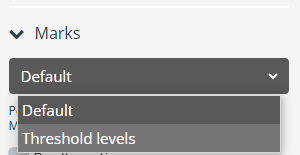
- You can select the option ‘Show advanced options’ where you can then set marks per correct answer. The total achievable score if all answers are correct will be the initial upper limit for the threshold levels.
- Click on Edit to start. You should save your question first using the blue Save button.
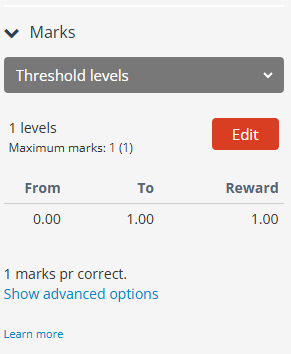
- A new area will then open where you can edit the threshold levels:
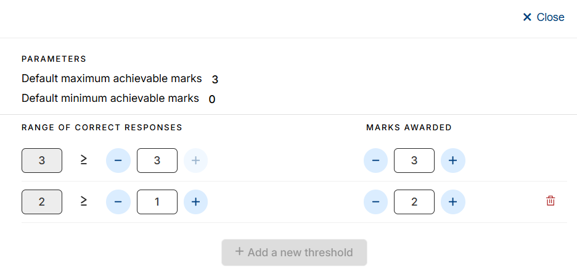
- You can add more thresholds using the ‘Add threshold’ button.
- You will need to set the upper and lower score for the level.
- The ‘marks awarded’ is how many marks the candidate will receive if the automatically calculated score falls in the defined range. This can be set to be higher than the default maximum score, or lower than the default minimum score.
- When you have finished editing and adding threshold values, click the ‘Save threshold settings’ button then click ‘Close’.
Note: The highest marks awarded for any of the thresholds will be the question maximum score.
Inspera recommend that you test the threshold scoring by previewing the question and try out different combinations of correct and wrong answers. This way you can verify that the reward is as you intended it to be.
ASSIGNING MARKS TO QUESTIONS
Maximum marks must be set when authoring questions in Inspera
Please note that the maximum marks per question must be set when you create and author your questions in Inspera. Maximum marks available per question cannot be increased once the question set has been used in an exam.
It is important that you take time to consider what marks are available per question.